
WordPress records no page views of its own. A tracking plugin adds the counter: SlimStat writes one row per page view into the wp_slim_stats table, and the Pageviews chart and Top Web Pages report read those rows back inside wp-admin. Three other routes exist — a server-side tracking mode, a manual counter, and GA4.
The four routes, compared
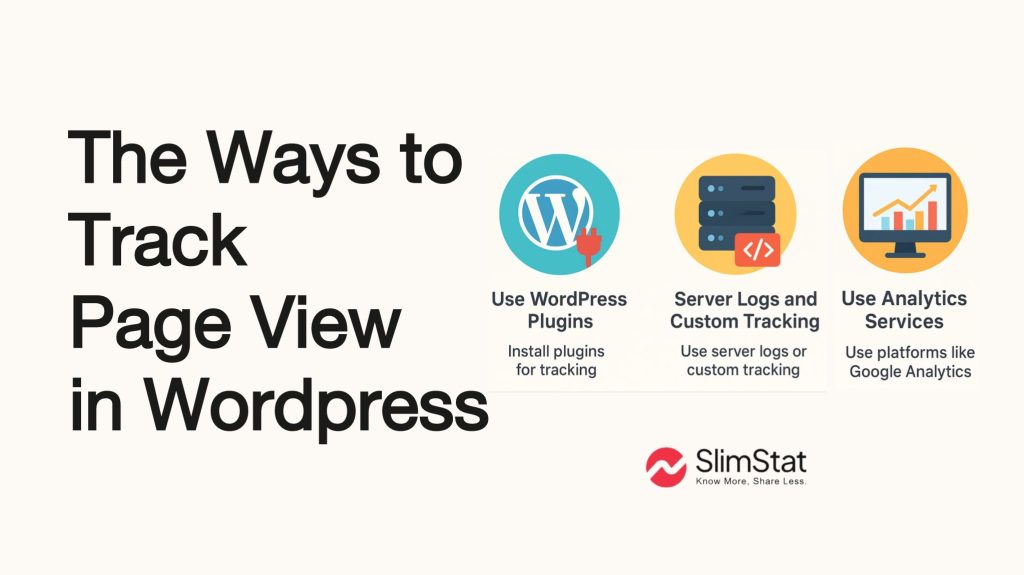
Four routes put a page view count on a WordPress site, and the choice turns on one question: where the count is written. A plugin writes to your own database, GA4 writes to Google’s, and a hand-rolled counter writes to wp_postmeta. Page caching then decides which of the four survives.
| Method | Where the count is stored | Survives a page cache | What setup takes |
|---|---|---|---|
| Analytics plugin (SlimStat) | Your own database, table wp_slim_stats | Yes, in Client tracking mode | Activate the plugin, no code |
| Server-side tracking mode | Same table, written while PHP renders | No, a cached page skips PHP | One toggle in Settings |
Manual wp_postmeta counter | A custom field on each post | No, unless you add an AJAX call | Custom code in functions.php |
| Google Analytics 4 | Google’s servers, not yours | Yes, the tag runs in the browser | A property, a tag, a consent banner |
The rest of this guide follows the first two rows, because they are the routes that keep the data on your own server. SlimStat has been listed on wordpress.org since 2010 and runs on 70,000+ WordPress sites, with a 4.8 rating across 817 reviews.
What a page view is, and what gets stored
A page view is one load of one URL, counted again on every refresh, so a reader who opens three articles produces three page views and one visit. SlimStat writes each load as a row in wp_slim_stats, and the row carries the URL, the timestamp, the WordPress post ID and a visit ID.
Four columns on that row do most of the work in the reports:
resource— the permalink that was requested, which is what Top Web Pages groups on.dt— the Unix timestamp the page view was recorded, which every date filter reads.content_id— the WordPress post ID, or0when the URL is not a post.visit_id— the identifier that groups several page views into one visit.
The full column list, with types, is in the database tables reference. Because page views, visits and visitors are three different counts drawn from the same rows, the three totals in your reports will never match; sessions vs users vs pageviews explains why. A page view is also not an event: clicks, downloads and form submissions need event tracking rather than a page counter.
Set Tracking Mode before anything else
Tracking Mode is the one setting that decides whether page views get recorded at all. Find it at SlimStat > Settings > General, under Tracker, as a toggle labelled Client and Server. Client is the default on a fresh install, and Client is the only correct choice on a site that serves cached HTML to anonymous visitors.
Client loads a small script in the browser, which posts the hit back to your site. The script fires on a cached page exactly as it fires on a freshly rendered one, so a full-page cache costs you nothing. Visitors with JavaScript disabled are not counted, and neither are most crawlers.
Server inserts the row while PHP renders the page, which counts every single request including JavaScript-free clients. That mode is only accurate without a page cache, because cached HTML is returned by the web server without WordPress running at all. SlimStat detects the situation and shows a warning in wp-admin when an advanced-cache.php file is present and Tracking Mode is still set to Server. The trade-offs of each mode are laid out in switching Tracking Mode.
Underneath Tracking Mode sits Tracking Request Method, which chooses how the browser sends each hit: the REST API, admin-ajax.php (the default), or Ad-Blocker Bypass. The first two use paths that blocklists commonly match, so a share of real visits goes uncounted; the third routes hits through a hashed path on your own domain, as described in recovering visits lost to ad blockers.
Where page views appear in wp-admin
Six report screens sit under the SlimStat menu: Real-time, Overview, Audience, Site Analysis, Traffic Sources and Goals & Funnels. Page views live mostly on two of those screens. Overview carries the Pageviews chart, At a Glance, Currently Online and Top Web Pages; Real-time carries the Access Log, which lists one row per hit as each one lands.
Overview is the screen to open first. The Pageviews chart plots total page views against unique IPs over your report window, and Top Web Pages ranks every URL on the site by hits — posts, pages, products, archives and any custom post type, not only WordPress pages. At a Glance summarises the same window in a single box, and Currently Online lists visitors seen in the last five minutes.
Site Analysis answers the follow-up questions about those same pages: Top Entry Pages, Top Exit Pages, Top Bounce Pages, Pages with Outbound Links, and Top Pages Not Found for URLs that returned a 404. Because rows land as they are tracked, all of these update within seconds rather than hours — see real-time analytics in WordPress for what that delay actually is.
There is also a per-post count inside the WordPress editor list. Turn on Posts and Pages at Settings > General, under WordPress Integration — the toggle is off by default — and the Edit Posts and Edit Pages screens gain a SlimStat column whose tooltip reads “Pageviews in the last 28 days”. The neighbouring Report Type toggle switches that column between Hits and unique IPs, and the 28-day window is the Time Range field at Settings > Reports.
Show a view count on the page with a shortcode
One shortcode, [slimstat], prints a count into any post, page or widget. Two attributes carry the work: f names the function and w names the column. f="count" w="id" returns page views for the current month, while f="count-all" w="id" returns the all-time total, and both read the same wp_slim_stats rows the reports read.
To scope a count to one URL, put a filter expression between the opening and closing tags:
[slimstat f="count-all" w="id"]resource equals /my-post-slug/[/slimstat]The filter grammar is column operator value, with operators including equals, contains, starts_with and between, and several conditions joined by &&&. Swapping f to recent or top returns lists instead of a number, and f="widget" renders a whole report inline when w holds that report’s ID.
Two references cover the rest without repeating it here: mastering SlimStat shortcodes for the grammar and the full dimension list, and frequently used shortcodes for copy-and-paste examples such as page views today, page views yesterday, and visitors online now.
One caveat worth stating up front: a shortcode count inherits your exclusion settings, so a page whose views come mostly from logged-in editors will read low if WP Users are excluded from tracking.
The manual counter and the GA4 route
A manual counter increments a wp_postmeta field on every load and prints the number in a template. The approach costs one database write per view, needs code in functions.php, and breaks the moment a page cache serves HTML without running PHP. GA4 avoids the caching problem, because its tag runs in the browser, but keeps nothing on your own server.
The manual route also gives you a single number and nothing else: no referrer, no country, no entry or exit page, no way to separate a crawler from a reader. Rebuilding those from scratch is how a twenty-line snippet becomes an unmaintained plugin.
GA4 is the opposite trade. The reporting is deep and free, and the data lives on Google’s infrastructure under a consent regime you have to implement yourself. If that trade is the actual question you are weighing, the Google Analytics alternative for WordPress page sets the two models side by side, and the comparisons index covers specific plugins.
Three things that break the count
Three failures account for most WordPress page view numbers that look wrong: a page cache serving HTML the tracker never sees, two scripts counting the same load twice, and unfiltered bot or admin traffic inflating every total. Each one has a specific fix inside SlimStat’s own settings rather than a general recommendation.
Caching. Set Tracking Mode to Client, then make sure your optimisation plugin leaves the tracker file alone — minification, concatenation and deferral all break it. The exact exclusion for W3 Total Cache, WP Rocket, LiteSpeed, Autoptimize and Rocket Loader is in exclude SlimStat from caching and minification.
Duplicate counting. Two analytics plugins, or one plugin plus a hard-coded tag in the theme header, will each record the same load, and the totals inflate without any error appearing anywhere. Keep one tracker per site. When counts have stopped instead of doubled, Settings > Maintenance holds a Tracker Error row with the last failure code and its timestamp, which is the first thing to read in the diagnostic checklist.
Bots and your own visits. The Bots toggle at Settings > Exclusions is on by default, and Client tracking mode drops most crawlers anyway because crawlers rarely execute JavaScript. Your own traffic is a separate switch: the same tab excludes WP Users wholesale, or specific usernames, capabilities, IP ranges in CIDR notation and country codes, as walked through in excluding your own visits.
How long page view data sticks around
SlimStat keeps page view rows for 420 days by default, then purges older rows on a twice-daily WordPress cron. The Retention Period field at Settings > Maintenance sets that number of days, and the Archive Mode toggle beside it decides whether purged rows move into wp_slim_stats_archive or are deleted outright.
Setting the field to 0 disables purging entirely, which grows the table without limit and, under GDPR’s storage limitation principle, needs a documented justification. The retention options are covered in data retention and auto-purge.
Frequently asked questions
Four questions come up on nearly every WordPress page view thread: whether WordPress counts anything itself, whether a page view identifies a person, whether bots are included in the total, and where the numbers physically live. Each answer below points at a specific setting or database column rather than a general principle.
Does WordPress count page views by default?
No. WordPress core ships no page view counter, so the number has to come from a plugin, a third-party tracking script, or custom code you write yourself. A brand-new install has no historical traffic data at all, which is why counting starts the day the tracker is switched on.
Can I see who viewed a page?
Only for logged-in WordPress users, whose login SlimStat stores in the username column of wp_slim_stats. Anonymous visitors are identified by IP address only, and the Data Protection settings can anonymise or hash that address before it is written, in which case no identifier survives to be looked up later.
Are bots counted as page views?
Not by default. The Bots toggle at Settings > Exclusions is enabled on a fresh install, and Client tracking mode filters most crawlers as a side effect, since automated tools generally do not run embedded JavaScript. Server tracking mode without that toggle counts every crawler request as a page view.
Where are WordPress page views stored?
In your own database, if you track with SlimStat: one row per view in wp_slim_stats, where wp_ is replaced by whatever table prefix your wp-config.php sets. On multisite, each subsite gets its own table. GA4 stores the equivalent data on Google’s servers, and no copy of it lands in WordPress.